Connect Framer to Rankauto
Rankauto publishes straight into a CMS collection in your Framer project. There is no plugin to install and nothing to sync by hand. Create an API key in Framer, paste it in with your project URL, choose a collection and map your fields once.
Before you begin
Make sure you have:
- Access to the Site Settings of the Framer project you want to connect
- A CMS collection in that project with a text field for the title and a formatted text field for the article body
- Optionally, a text field for the meta description and an image field for the featured image
Publishing updates your whole Framer site
When Rankauto publishes an article it publishes the Framer site, so any design changes you have saved but not published yet will go live with it. Publish or finish those changes before you connect.
Connecting your Framer project
You need two things from Framer: an API key and your project URL.

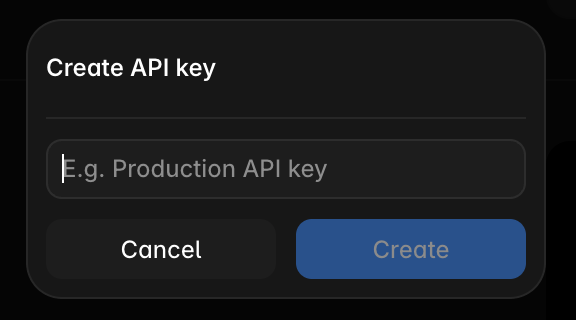
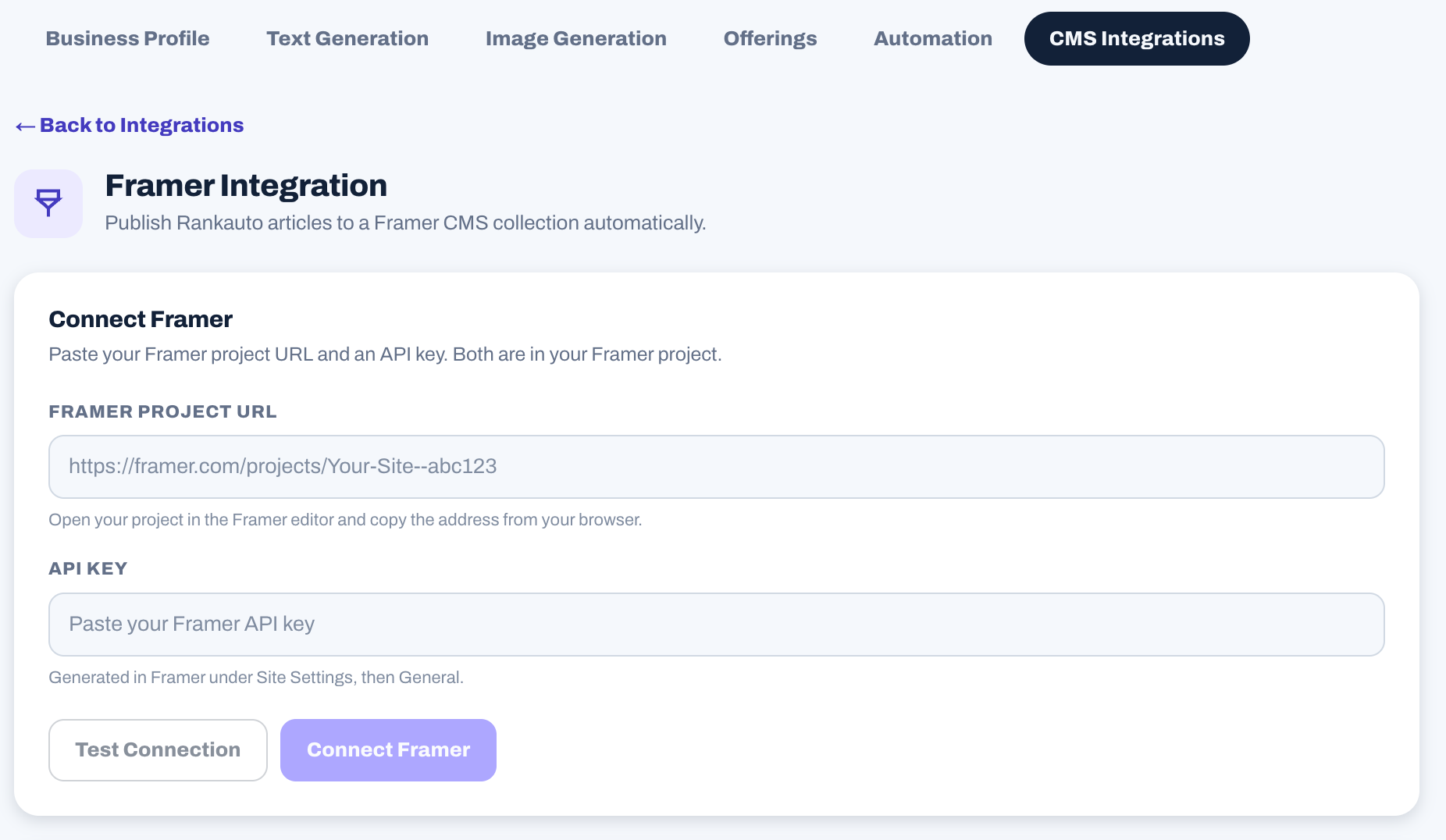
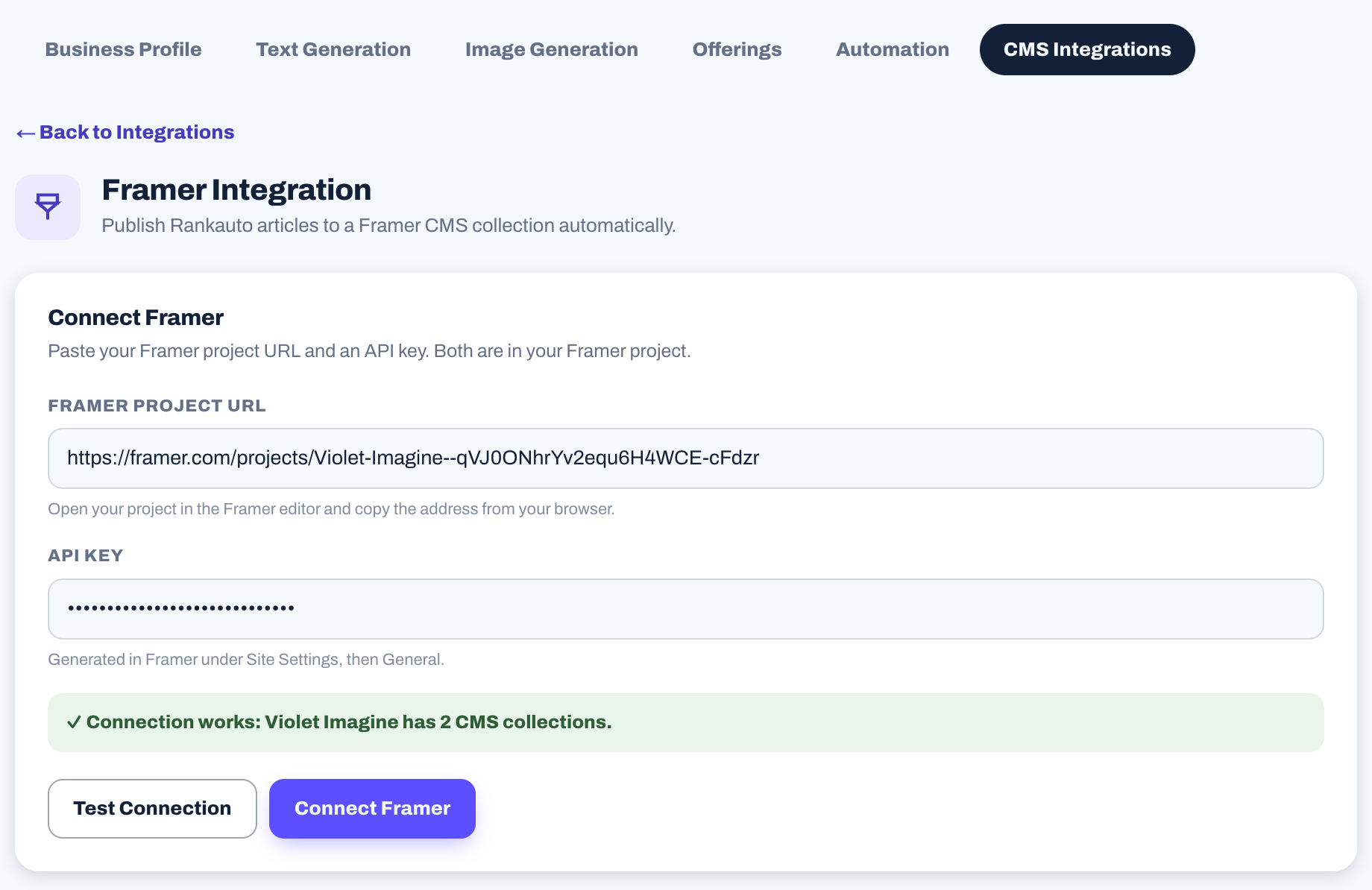
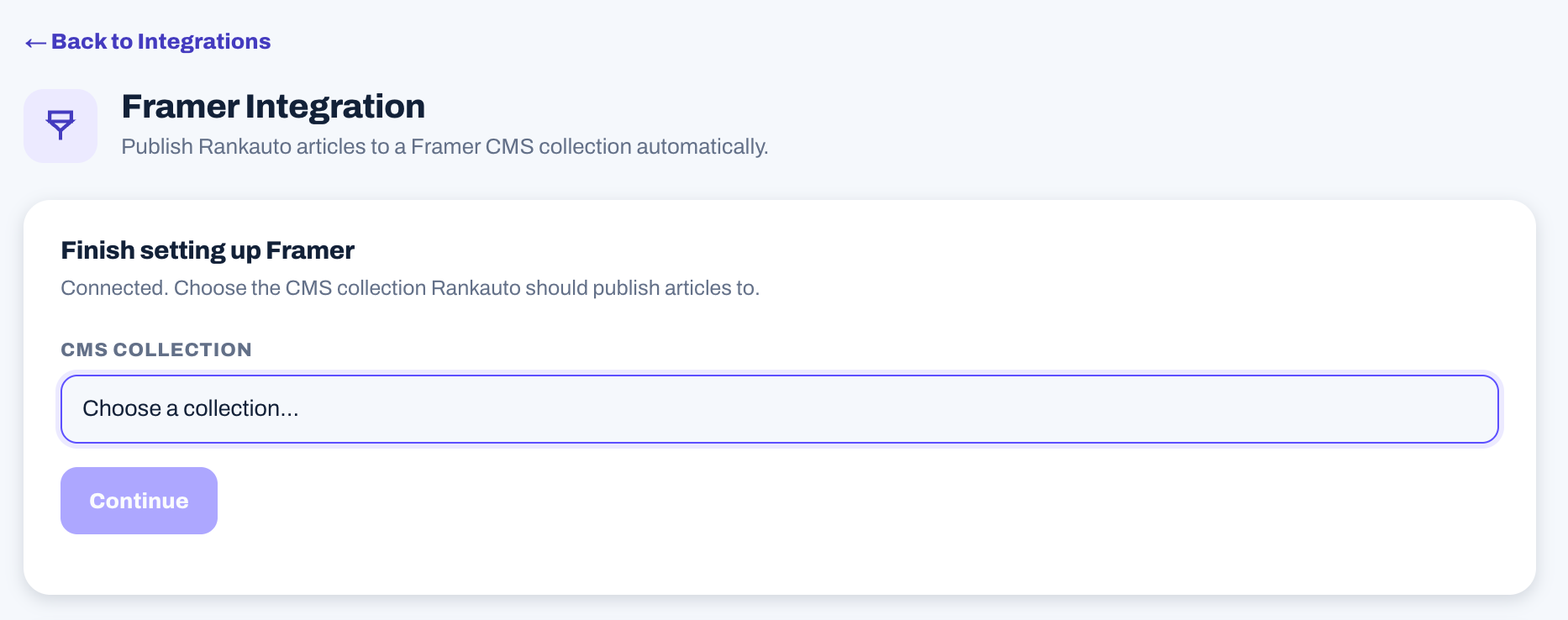
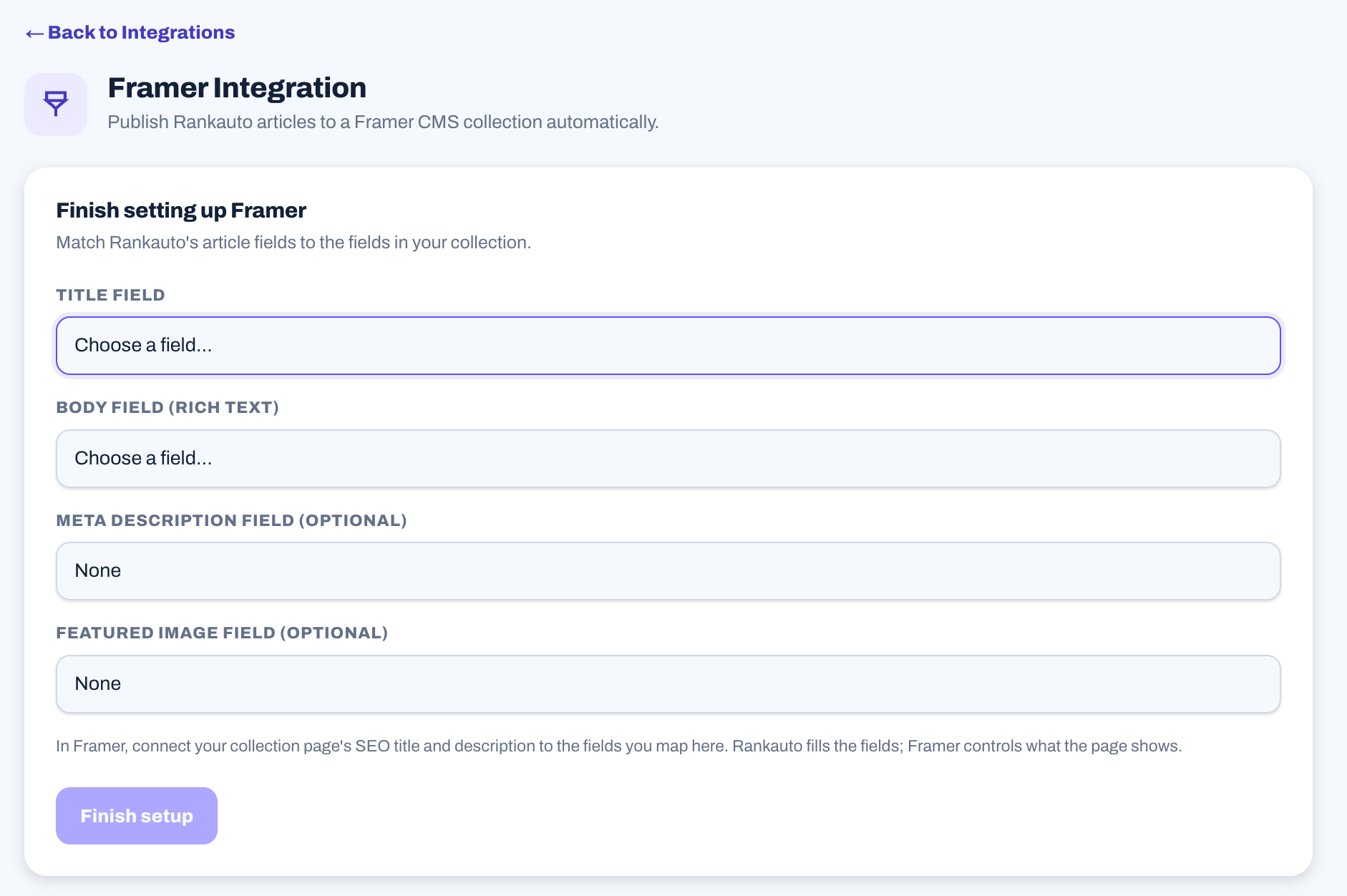
Once connected, open any drafted article in Rankauto and click Publish Now. Rankauto adds the article to your collection and publishes your Framer site.
Show the meta description on the page
Rankauto fills the fields you map, and Framer controls what the page shows. In Framer, connect your collection page’s SEO title and description to those fields so search engines see them.
Updating and unpublishing articles
After an article is published, editing it in Rankauto and clicking Publish Now again updates the same item in your collection and keeps its URL, rather than creating a duplicate. Clicking Unpublish marks the item as a draft in Framer and republishes the site so it comes off your live pages.
What gets set automatically
Every article Rankauto publishes to a connected Framer collection includes:
- The article’s title and body, written into your mapped fields
- A URL slug matching the one in Rankauto’s dashboard. If your collection already has an item with that slug, Rankauto adds a short suffix instead of overwriting it
- Meta description and a featured image, when you have mapped fields for them
Troubleshooting
Rankauto says to paste the full project URL.
Use the address from the Framer editor, which starts with framer.com/projects/. The published site address ending in .framer.app will not work. Anything Framer adds after the project id is fine to leave in.
Test Connection fails.
Check that the key was copied in full and that it was created in the same project as the URL you pasted. Framer API keys belong to one project. If you are unsure, create a new key in Site Settings → General and paste that one.
The test says my project has no CMS collections.
Create a collection in Framer first, such as a Blog, with a title field and a formatted text field for the body. Then run the test again.
Setup is blocked with a message about required fields.
A field on your collection is required and is not something Rankauto can fill in, such as a reference to another collection. Make that field optional in Framer, or choose a different collection.
My other unfinished design changes went live.
Publishing an article publishes the whole Framer site, so saved but unpublished design changes go out with it. Publish or finish your design work before connecting, and keep unfinished changes on a separate branch or project if you need to.
Frequently asked questions
Do I need to install a plugin?
No. Rankauto connects with an API key and your project URL, so there is no plugin and no manual syncing step.
How is my API key stored?
Encrypted. Rankauto does not show it again after you connect. If you ever want to cut off access, delete the key in Framer’s Site Settings and disconnect Framer in Rankauto.
Can I connect more than one Framer project?
One CMS connection is active at a time. Connecting a new project or platform replaces the current one.
Can Rankauto publish articles automatically?
Yes. Clicking Publish Now pushes an article live straight away. If you want your scheduled daily articles to go live on their own, turn on Auto Publishing under Settings → Automation. It is off by default.
Why does Framer call API keys a beta feature?
Framer’s API keys and Server API are newer features and Framer labels them beta, so the steps inside Framer may change. If a screen looks different, look for API keys under your project’s Site Settings.
Other integrations
Set up Rankauto on another platform.
Ready to publish straight to Framer?
Connect your project from Settings once you’re signed in, or start a free trial to try the whole workflow end to end.
Start 3-day free trial