Connect WordPress to Rankauto
Connecting Rankauto to your WordPress site turns a finished draft into a live post with one click. The featured image, meta title and description, and your target keyword’s focus keyphrase in Rank Math or Yoast SEO all get set automatically, so there is no copying markdown into the block editor and no manually re-entering SEO fields.
Before you begin
Make sure you have:
- A WordPress site on WordPress 5.0 or later
- Administrator access to install plugins and generate an API key
- Your site running PHP 7.4 or later
Connecting your WordPress site
Install the Rankauto plugin on your WordPress site first, then connect it from your Rankauto account’s Settings.
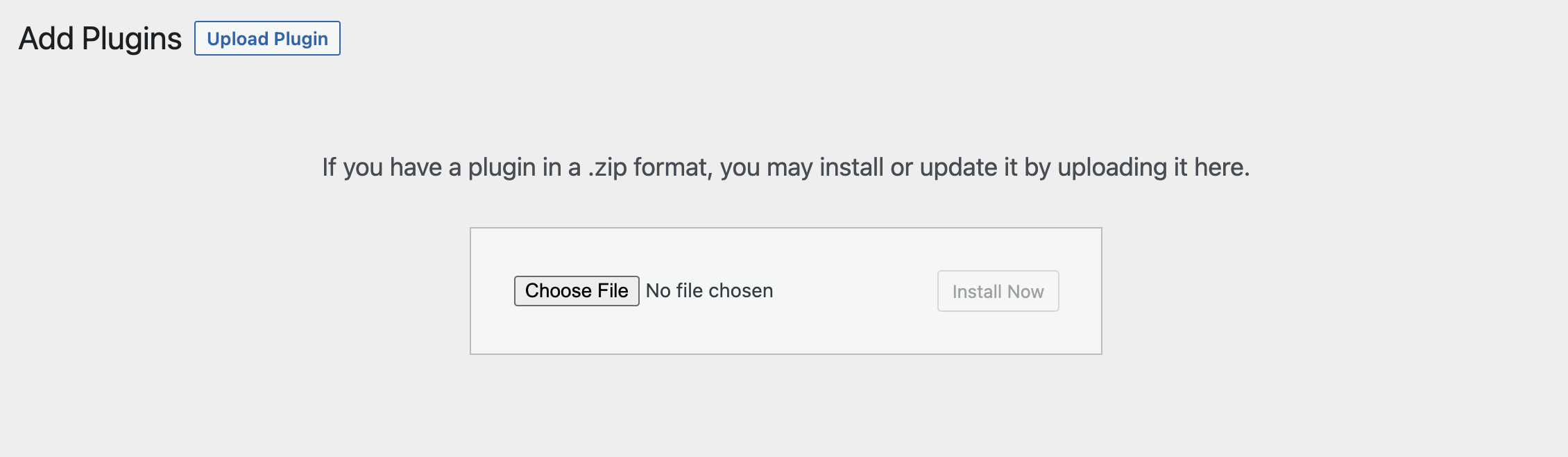
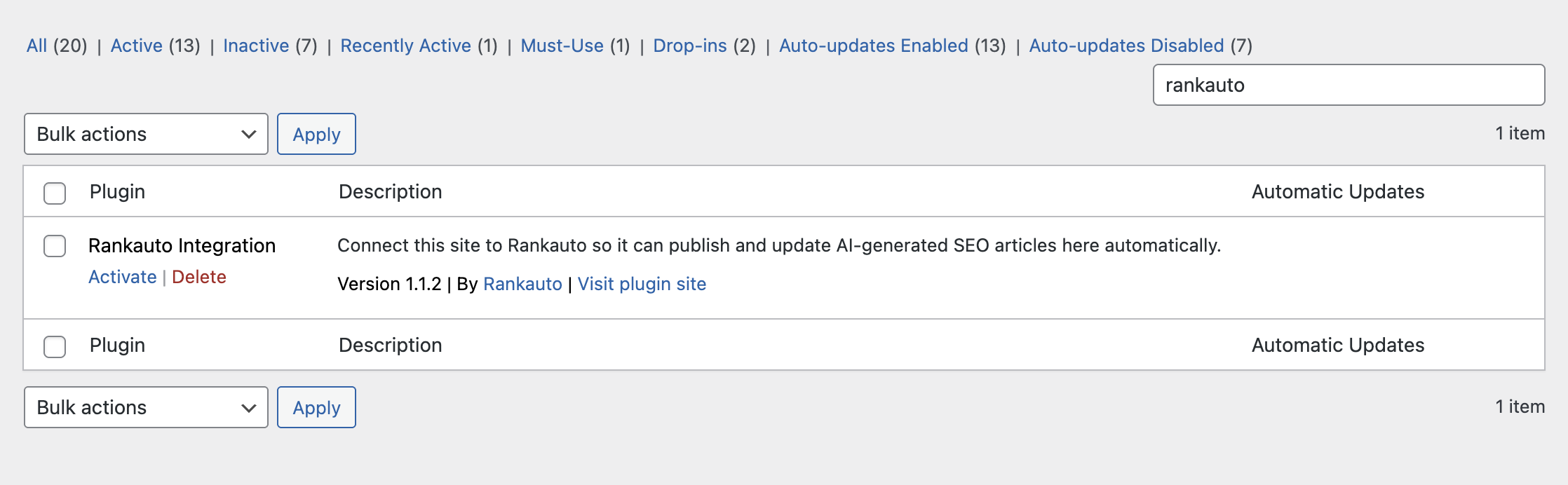
rk_). The WordPress account you’re logged in as when you generate the key becomes the author every article Rankauto publishes here is credited to.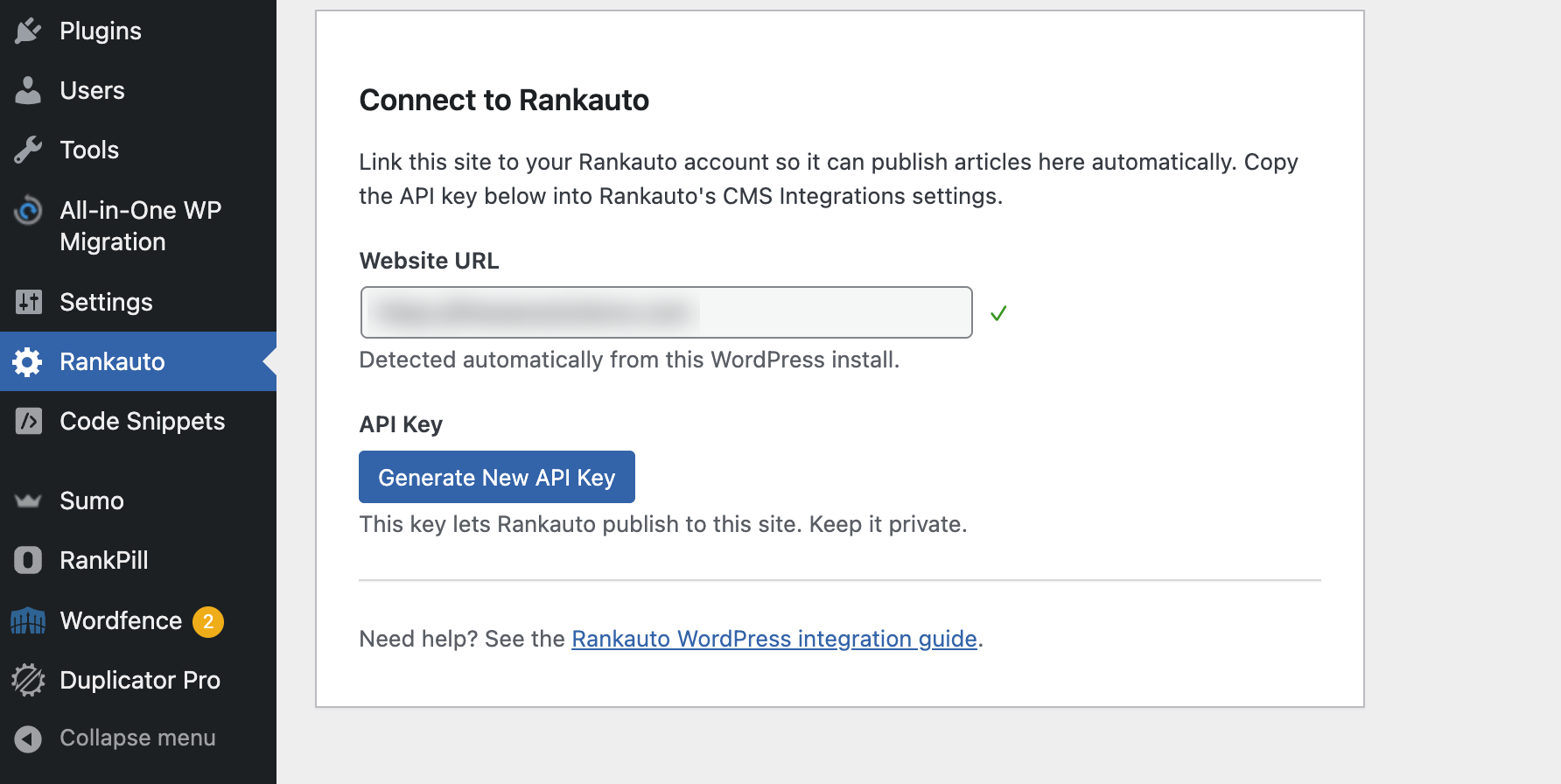
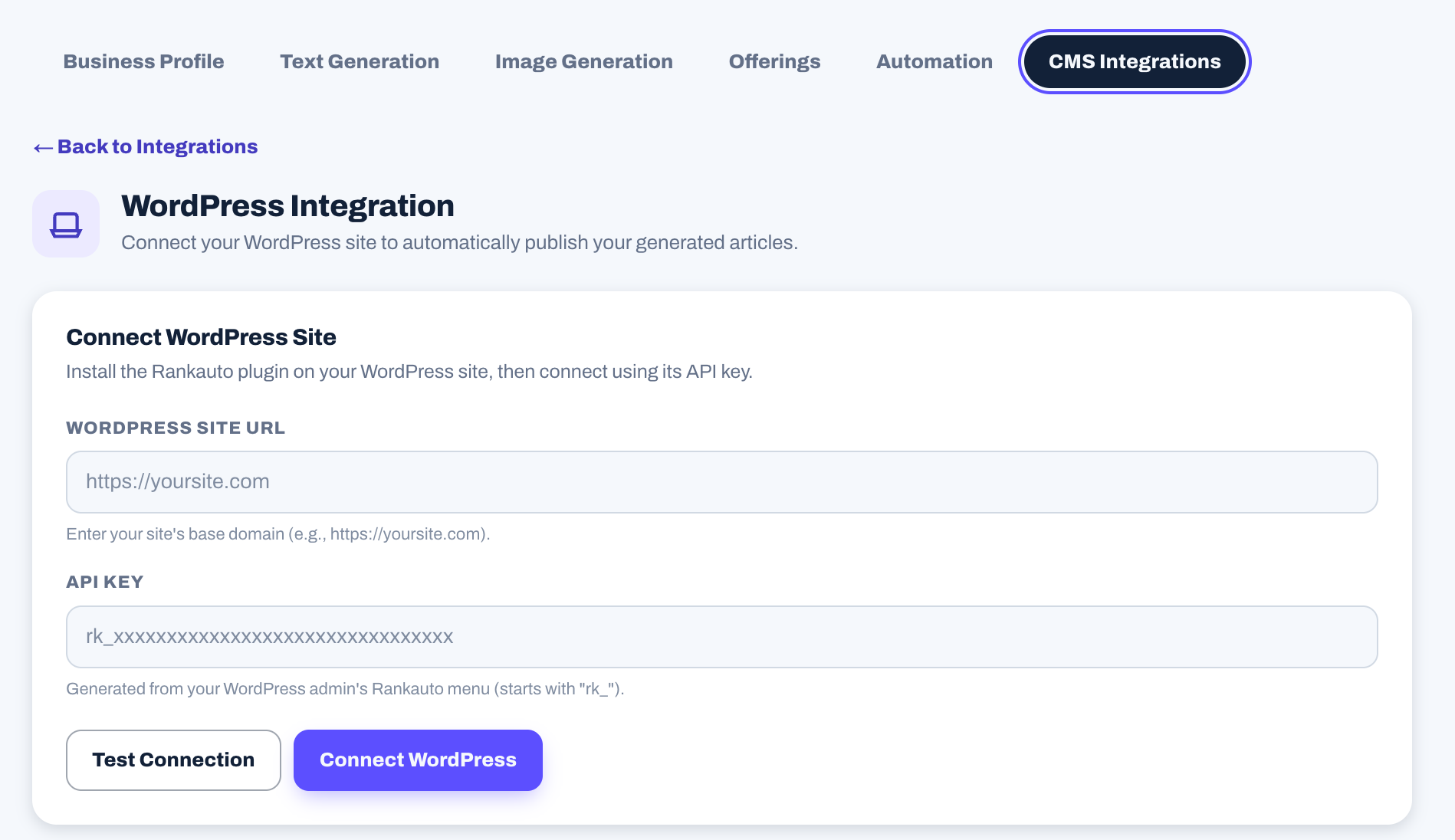
Once connected, open any drafted article in Rankauto and click Publish Now. Rankauto formats the article, uploads the featured image and writes the SEO fields, all in one request.
Updating published articles
After an article is published to WordPress, editing it in Rankauto and clicking Publish Now again updates the same post in place. Rankauto keeps track of which WordPress post it created, so nothing gets duplicated.
What gets set automatically
Every article Rankauto publishes to a connected WordPress site includes:
- A featured image, uploaded to your site’s Media Library
- An SEO title and meta description, written to both Rank Math and Yoast SEO’s own fields (whichever plugin is active)
- The article’s target keyword set as the Rank Math or Yoast focus keyphrase
Customizing published content
Changing the default category
Rankauto doesn’t assign a category when it publishes, so new posts land in whatever WordPress treats as its default category, usually “Uncategorized”. To rename it, go to Posts → Categories, find “Uncategorized”, click Edit, and give it a name that fits your site (for example “Blog” or “Articles”).
Changing the author name
Articles are credited to whichever WordPress user generated the connected API key. To change the byline going forward, either update that account’s Display Name under Users → Profile, or generate a new key from the Rankauto menu while logged in as the account you want future articles credited to.
Optimizing your permalink structure
WordPress’s default link structure includes a numeric post ID, which reads as yoursite.com/?p=123 and gives search engines nothing to go on. For a cleaner, more readable URL, go to Settings → Permalinks in WordPress and choose Post name. Your published articles will then use their own slug, for example yoursite.com/your-article-title/.
Troubleshooting
I can’t find the Rankauto plugin in WordPress.
That’s expected for now. The plugin isn’t on the WordPress.org directory yet, so a search under Plugins → Add New won’t turn it up. Download it from the link in step 1 above and install it via Plugins → Add New → Upload Plugin instead.
The plugin won’t activate.
Check that your site is running WordPress 5.0 or later and PHP 7.4 or later. If both are fine, try temporarily deactivating your other plugins one at a time to rule out a conflict.
My connection failed. What should I check?
Make sure the plugin is activated and you’ve generated an API key from the Rankauto menu in WordPress. Use your site’s plain URL (for example https://yoursite.com) with no /wp-admin and no trailing slash. If you run a security plugin such as Wordfence or iThemes Security, check that it isn’t blocking REST API requests to /wp-json/rankauto/v1/.
My articles aren’t publishing.
Confirm the API key hasn’t been revoked from the Rankauto menu in WordPress, and that the WordPress account tied to that key still has Administrator access.
Frequently asked questions
Can I connect more than one CMS at a time?
No. Connecting a new site or platform replaces whichever CMS is currently connected. Disconnect the new one and reconnect the old one if you need to switch back.
Will this slow down my WordPress site?
No. The plugin only runs when Rankauto requests a publish or an update. It has no effect on your site’s normal page load or front-end performance.
Is my API key secure?
Yes. It authenticates with a single private key, compared using a timing-safe check, never a username or password. You can revoke it instantly from the plugin’s own settings screen in WordPress, which immediately disconnects Rankauto from your site.
Does this publish automatically, or do I click Publish myself?
Manual by default. Once WordPress is connected, clicking Publish Now on any article pushes it live immediately. If you’d rather your scheduled daily articles publish on their own, turn on Auto Publishing under Settings → Automation, it’s off by default.
Other integrations
Set up Rankauto on another platform.
Ready to publish straight to WordPress?
Connect your site from Settings once you’re signed in, or start a free trial to try the whole workflow end to end.
Start 3-day free trial