Internal Linking: A Guide for Business Blogs
Improve internal linking with real GitHub examples and a practical link map. Check anchors, broken destinations, incoming links, and publishing steps.

Internal linking connects pages on the same website. Good links help a reader understand a concept, perform the next step, or find a relevant product or service. They also give search engines routes to discover pages and context about what those pages cover.
For a business blog, start with the reader's journey: where should someone go after this paragraph, and does that destination deliver what the link promises? You can improve a small site's links without adding a link to every keyword or buying a plugin.
Rankauto publishes this guide. We reviewed the real documentation examples below on October 11, 2026; the worksheets are our editorial method.
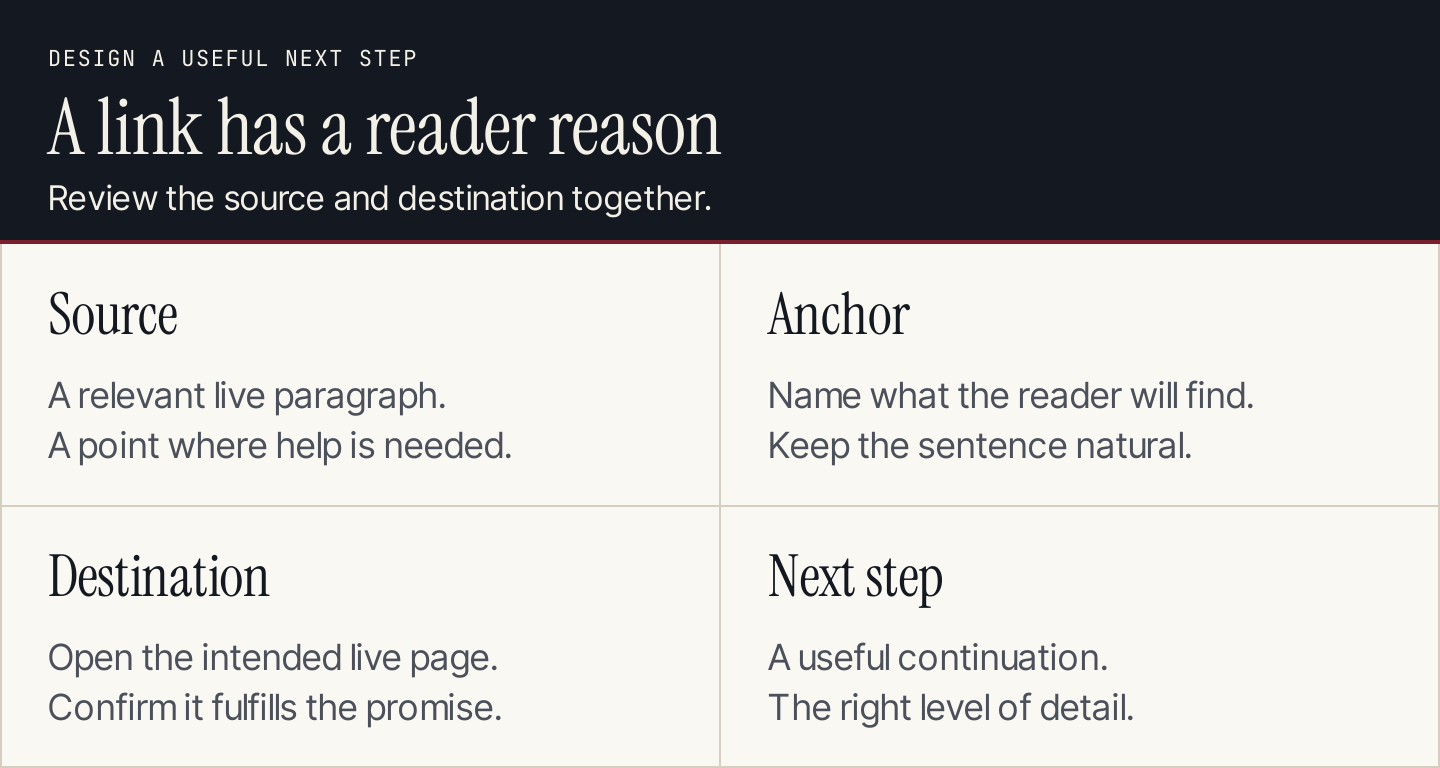
A useful link needs a reason, a clear label, and a destination that fulfills the promise.
How internal links help SEO
Google's link guidance explains that links help it discover pages and understand relevance. It also recommends that important pages receive a link from another page on the site.
Think of internal links as part of the site's structure. A valuable guide that nobody can reach from related content is difficult for readers to find. A service page linked only from an unrelated footer item has less explanatory context than one introduced within a relevant guide.
Links don't guarantee that Google will index a page or improve its ranking. The destination still needs to work, answer the task, and be suitable for search. A broken or irrelevant destination doesn't become useful because many pages link to it.
Distinguish internal links from backlinks. Internal links connect your own pages. Backlinks come from other websites. You control the first directly, but that doesn't make the two interchangeable.
The main types of internal links
| Link type | What it does | What to review |
|---|---|---|
| Main navigation | Exposes core sections and offers | Clear labels and working destinations |
| Breadcrumbs | Shows where a page belongs | A sensible route back through the site |
| Contextual links | Extends an explanation or supplies a next step | Relevance of the surrounding paragraph |
| Related-content links | Suggests useful continuation | Actual relationship to the current task |
| Footer links | Provides stable secondary destinations | Accuracy and readability |
| Image links | Makes a visual a navigation element | Understandable purpose and meaningful alt text |
These serve different roles. Main navigation shouldn't contain every blog post. A related-content module shouldn't replace a necessary link within the instructions. A contextual link should appear when the reader needs the destination, rather than at an arbitrary word count.
1. Identify the pages readers need to reach
Start with your important customer tasks and the pages that address them. Include product and service pages, guides, help articles, and useful tools.
For each destination, write a sentence describing its promise. For example:
- A keyword-selection guide helps choose topics that fit the business.
- A keyword map helps assign an approved topic to a page.
- A calculator transforms defined inputs into a useful estimate.
- A service page explains what the business provides and how to inquire.
Then find existing pages where a reader would need that promise. The question isn't “Which page has this keyword?” It's “Where does this next step become relevant?”
Use the site's page inventory and your keyword map. Search engines can help find candidates, but their indexed results aren't a complete record of every page on your site.
Avoid linking to unpublished destinations. When a new article is approved, record the intended sources and add the links after the page is available.
A real example: GitHub links a specific step to its explanation
GitHub's milestone instructions tell readers that a milestone description supports Markdown and link to the basic writing and formatting guide at that point.
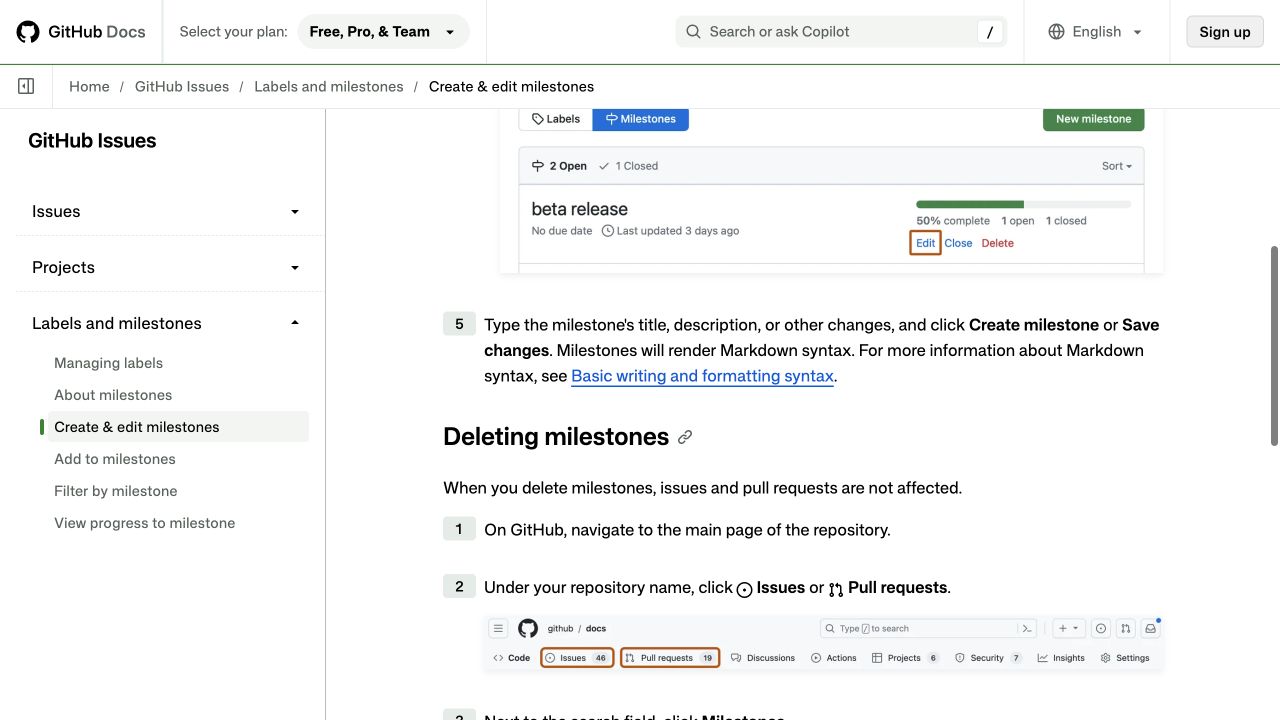
The formatting link appears where a reader may need help writing the description. Source: GitHub Docs.
The link works as an editorial example because:
- The reader has a specific task, writing a milestone description.
- The paragraph introduces a relevant capability, Markdown formatting.
- The anchor names the explanation the reader can open.
- The destination supplies supporting detail without interrupting the main instructions.
You don't need a software documentation site to use the same pattern. A marketing guide can explain how to evaluate a keyword, then link to a mapping worksheet when the reader needs to assign it to a page. An appointment-booking guide can link to the relevant service scope when it explains which appointments a business accepts.
This is a useful design pattern observed on a real page, not evidence of GitHub's SEO results.
2. Write anchor text that describes the destination
Anchor text is the clickable label. Make it specific enough that someone can predict where the link goes.
| Weak label | Clearer label | Why it helps |
|---|---|---|
| Click here | keyword mapping worksheet | Names the resource |
| Learn more | how to update declining blog posts | Names the task |
| This article | our guide to choosing SEO keywords | Names the subject |
| Book now | view available consultation appointments | Describes the next action |
These are editorial examples. Choose wording that accurately matches your own destination. A link called “worksheet” shouldn't lead to an article that contains no worksheet.
Use natural phrasing. You don't need to repeat an identical exact-match keyword every time a page is linked. Equally, avoid changing the label so much that readers can't recognize the same destination.
Keep the surrounding sentence readable. If it only exists to accommodate a link, rewrite it around the reason someone would need the page. Don't stack several links together when you can give each a distinct explanation.
For linked images, use alt text that explains the relevant image or link purpose. A filename isn't a useful label. Text links are often easier to understand when the visual doesn't clearly communicate the destination.
3. Add links where they help the current task
Place a link at the point where the supporting explanation becomes useful. That might be near the beginning, within a step, in a comparison, or at the end of the article.
Consider these relationships:
| Current page | Useful continuation | Reason for the link |
|---|---|---|
| Choosing keywords | Keyword mapping | The reader has selected topics and needs destinations |
| Content gap analysis | Content audit | The reader needs an inventory before comparing coverage |
| Blog-writing guide | Relevant product or service | The offer genuinely helps with the described task |
| Tool page | Explanation of assumptions | The reader needs to understand the output |
| Implementation guide | Troubleshooting guide | A step fails and the reader needs recovery instructions |
The same principle is visible in Mailchimp's signup-form options: the embedded-form option links to the relevant setup resource. A choice page hands off implementation instead of repeating the full walkthrough.
Don't add a product pitch to every explanatory paragraph. A commercial destination deserves a link where it helps the decision. Our content funnel guide explains how to match the next action to what the visitor is ready to do.
Google's guidance doesn't specify an ideal number of links. Review their usefulness rather than enforcing a fixed link quota. A short page may need only a few routes; a well-organized resource directory may need many.
4. Connect new posts from relevant existing pages
A new article can link outward to your other content and still have no incoming contextual links. Review both directions when publishing it.
Use this publication routine:
- Identify existing pages that introduce the new article's task.
- Open those pages and locate a suitable paragraph.
- Add a link with an accurate label and a clear reason.
- Open the destination and confirm it works.
- Check the mobile version of the source page.
Don't add the new post to every older article in its category. Find the places where it makes a specific explanation more useful.
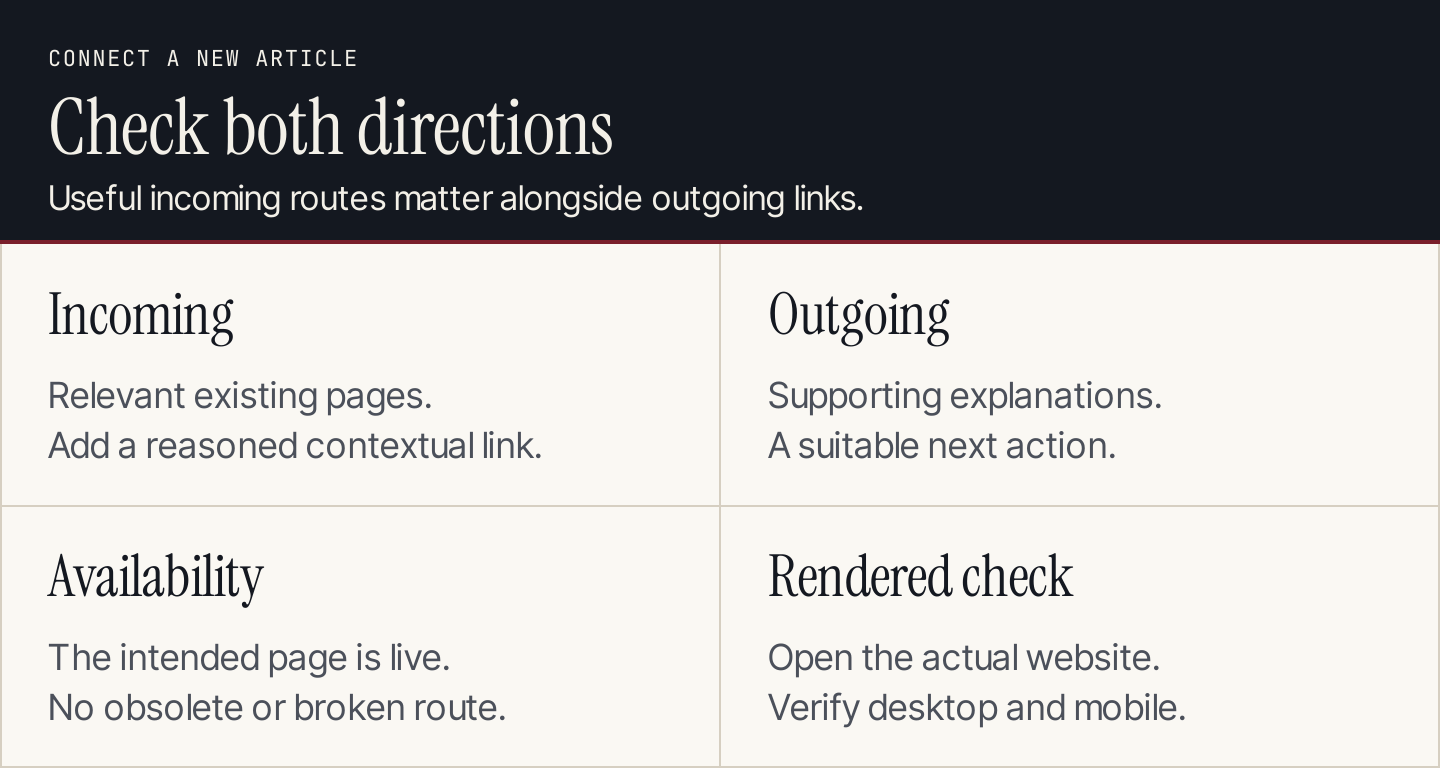
Review incoming and outgoing routes when a new article becomes available.
A page with no detected incoming internal links is often called an orphan page. To investigate, compare the intended page inventory with a crawl and the site's navigation. A page missing from a crawler's report may reflect the crawl's settings or access limits, so confirm the actual situation before changing it.
If an important page lacks a route, add one from a relevant accessible page. Putting the URL in a planning spreadsheet doesn't give readers a link on the website.
5. Make sure the links work as links
Google's crawlable-link examples show standard HTML anchors with href attributes. A text label that depends only on a script click event isn't the same implementation.
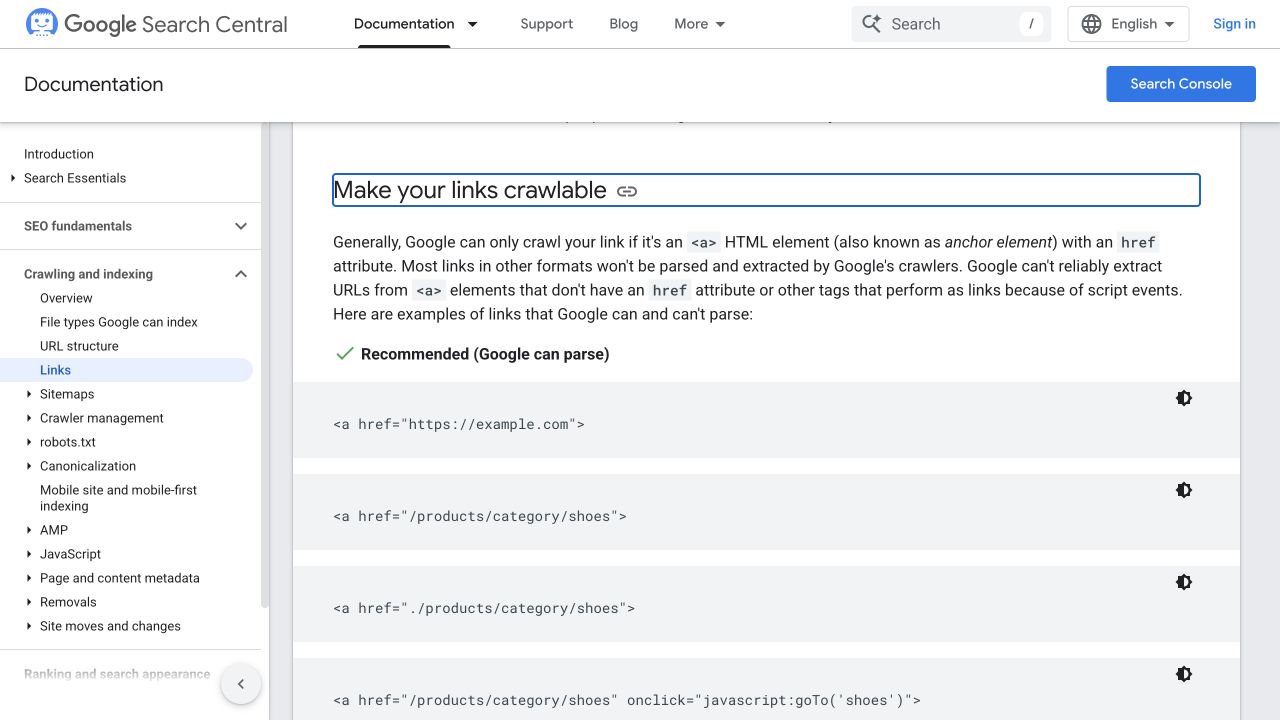
The link examples use HTML anchors with destination URLs. Source: Google Search Central.
In a typical content editor, use the editor's link control and paste the intended URL. On a custom website, ask the developer to verify that the rendered link has a real destination and works with a keyboard.
Check more than whether a click does something:
- Does it open the correct live page?
- Does the label accurately describe that page?
- Does the route work on mobile as well as desktop?
- Does it lead through an unnecessary redirect or an obsolete address?
- Has a removed page left a broken link behind?
- Does the website's implementation expose the link as a normal link?
An in-page contents link is useful navigation but doesn't connect another page to the article. Keep that distinction clear when counting incoming routes or auditing your site's structure.
6. Audit links with a source-to-destination worksheet
Use one row per proposed correction. A useful link review records the paragraph and the reason for the change, not just the URL.
| Field | What to record |
|---|---|
| Source page | The live page containing the link |
| Source context | The heading or paragraph where it appears |
| Anchor | The actual clickable words |
| Destination | The intended live URL |
| Reader reason | What the destination helps the reader do |
| Finding | Broken, outdated, misleading, missing, or useful |
| Action and owner | The precise correction and responsible person |
| Verification | The checked page and implementation result |
Prioritize links that prevent readers from completing important tasks. A broken booking route or misleading setup link usually deserves attention before minor wording differences in a low-priority article.
If you use a site-audit tool, inspect its suggested opportunities in the actual source paragraph. Matching words can point to an opportunity, but they can also describe an unrelated concept. Treat automated suggestions as candidates.
For a small site, a manual review of the important pages is practical. For an agency managing larger sites, a crawl can help locate errors and missing routes, while editors verify the context before changing them.
What to do when a destination changes
When a page moves or is consolidated, review the incoming links recorded in your map. Update them to the relevant current destination where appropriate. Don't send every retired page to the homepage simply to make the error disappear.
If the underlying task no longer has a suitable answer, decide whether to restore it, replace the explanation, or remove the misleading link. A redirect can preserve a route, but it doesn't make an unrelated destination useful.
Keep useful evergreen articles connected as new content is published. The content-refresh guide shows how to review links alongside changing facts and instructions.
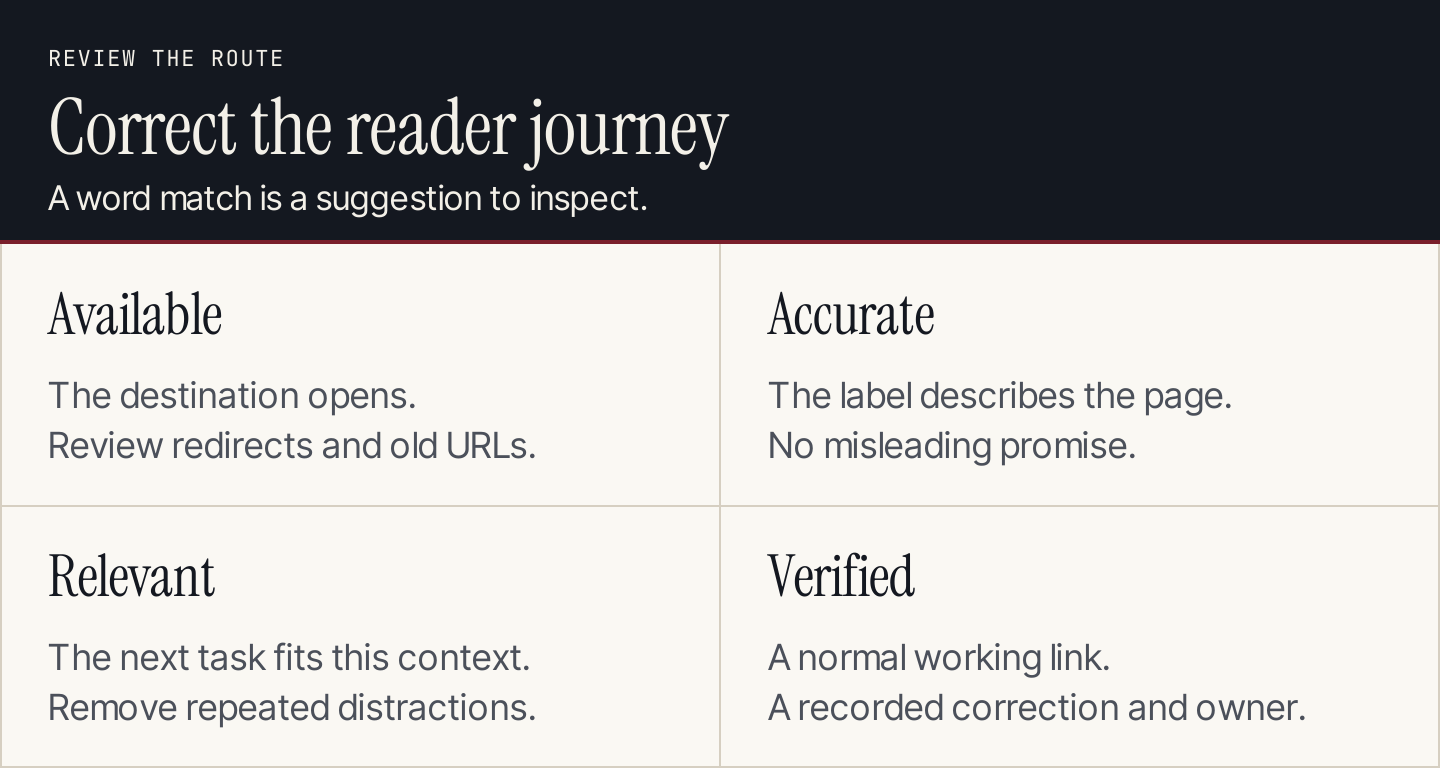
A successful correction fixes the reader's route and verifies the final page.
How to review internal-link automation
Automation can find repeated terms or propose possible destinations. The risk is that a plausible word match becomes a poor recommendation in context.
Before accepting a suggestion, inspect the source sentence and destination. Reject it when the anchor promises the wrong task, the target duplicates the current explanation, or the link interrupts an instruction.
After a bulk change, check a sample of affected pages in the rendered website and review any important destinations directly. Keep a change record so the editor can reverse unsuitable placements. Don't assume that adding more links means the site became easier to use.
If you use Rankauto for blog production, articles save as drafts by default and include an SEO score. Use the review step to verify their claims, destinations, and useful connections before publishing. Rankauto's included SEO audit can support the broader website review; the final link still needs to make sense in its paragraph.
Common questions about internal linking
How many internal links should a blog post have?
Enough to provide the supporting explanations and next steps its reader needs. There isn't a universal ideal count. Remove repetitive or irrelevant links and add routes that close a meaningful gap.
Can I link to the same page more than once?
Yes, when separate contexts make that helpful, such as a navigation item and a relevant paragraph. Don't repeat a link solely to increase its count. Review whether each occurrence helps someone use the page.
Should every article link to the product?
Only when the product supplies a useful next step for that task. Some articles should link to a supporting guide or tool first. An accurate path is more valuable to the reader than a repeated pitch.
What is the first improvement for a small business site?
Identify the important service, product, and guide pages, then make sure suitable readers can reach them from relevant existing content. Correct broken and misleading routes before adding a large number of new links.