WordPress SEO: A Blog Publishing and Maintenance Checklist

WordPress SEO combines useful content with settings and publishing practices that help readers and search engines access the right pages. Installing an SEO plugin covers only part of that work.
Before publishing a blog post, check the live site’s visibility, preserve established URLs, assign responsibility for SEO outputs, and prepare the text and images. After publication, inspect the public page and maintain the system behind it.
This guide uses WordPress.org’s public documentation and current Google guidance. Its screenshots show documentation illustrations, not an authenticated WordPress site or settings changed for this article. Dashboard controls and available features vary with the installation, hosting, theme, editor, and WordPress.com plan.
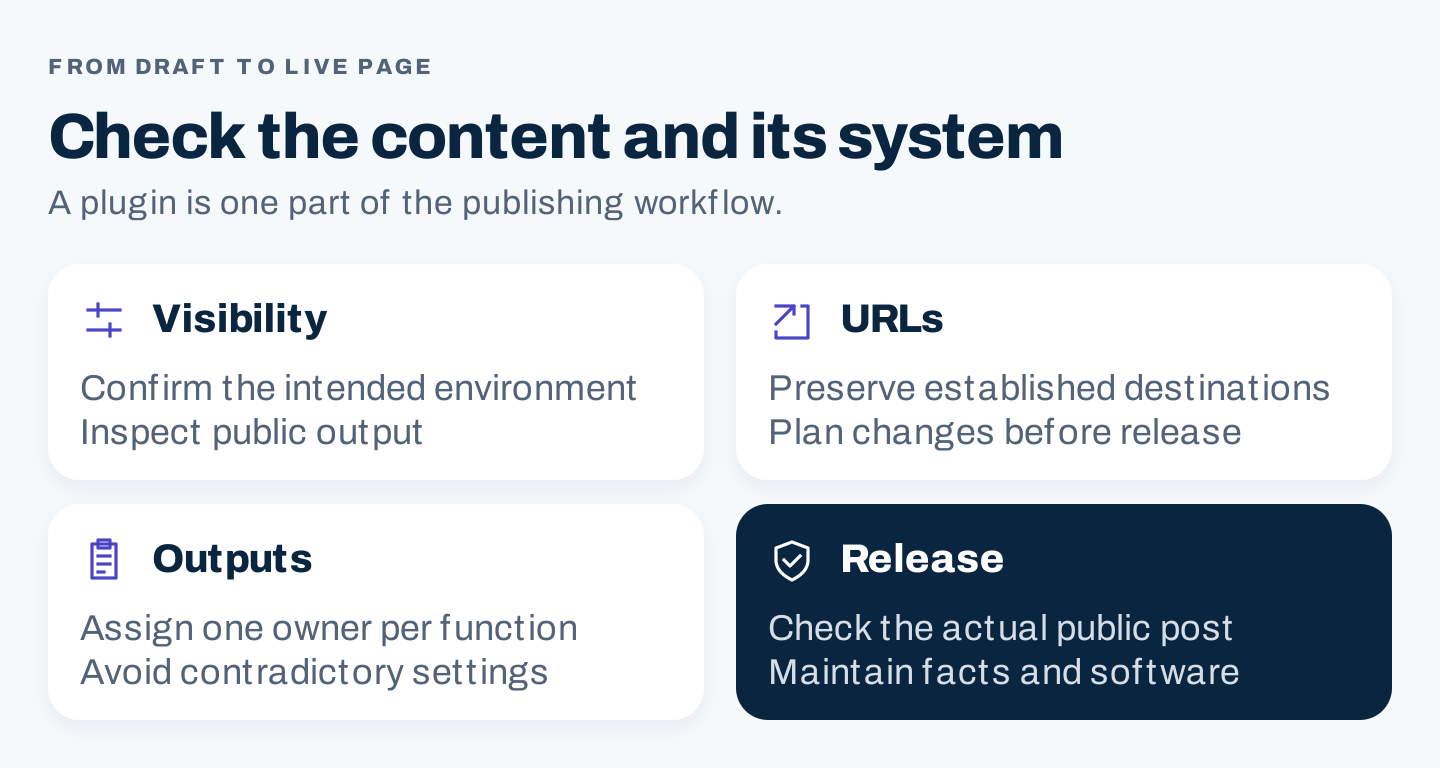
Original publication framework. A complete workflow checks both the article and the system serving it.
1. Check the live site’s visibility before editing content
Start with the site you intend to make public. In a standard WordPress dashboard, Settings → Reading includes a search-engine visibility option asking search engines not to index the site. Check that setting against the intended environment. WordPress Reading settings.
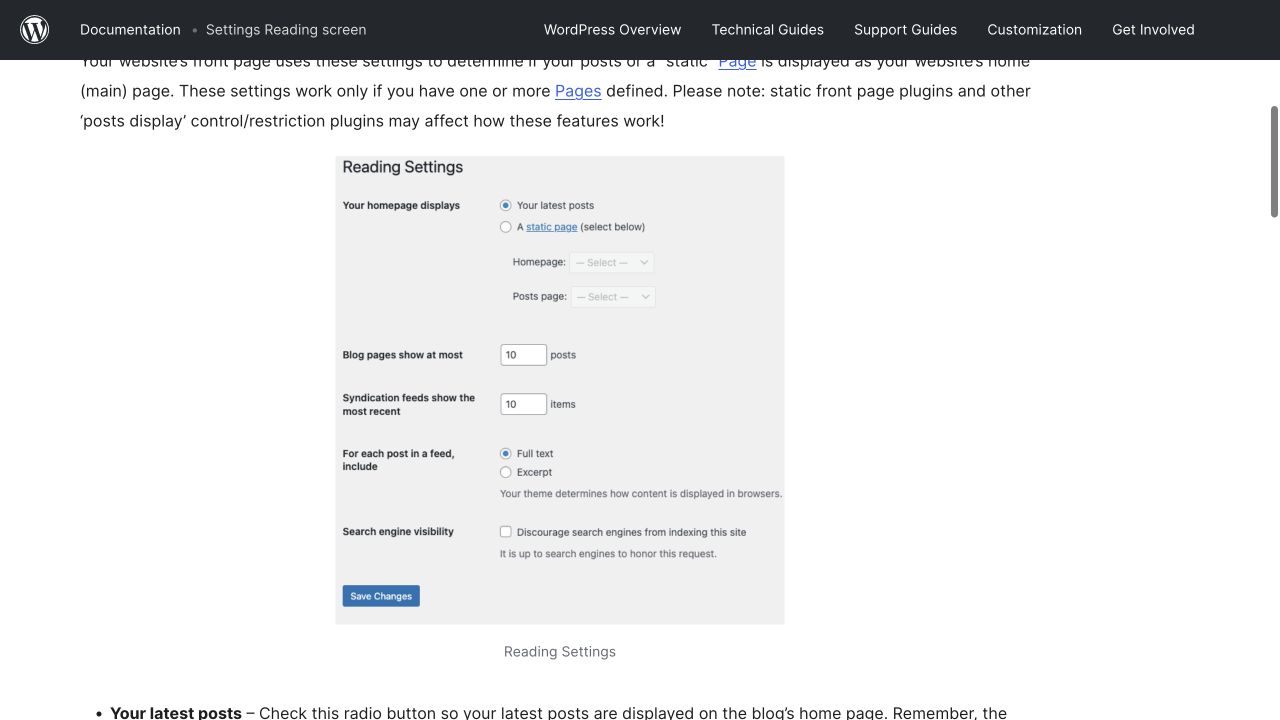
Authentic desktop capture of public documentation. The checkbox is a documented control; it does not prove that any particular site is indexable.
For a public production site intended for search discovery, an enabled discourage-indexing setting needs investigation. For a staging environment, restricted discovery may be intentional. Do not change the environment’s visibility without establishing what should be public.
The checkbox is not a privacy or security control. Protect private staging content through appropriate access restrictions in the hosting environment.
Inspect what the public URL actually serves
Open an important page as a visitor. Confirm that the expected content appears, the URL reaches the intended destination, and the page does not require an unexpected login.
Then use authorized Search Console access to investigate its indexed status and, when useful, the live test. The indexed report describes Google’s stored information; the live test checks current eligibility conditions. A successful live test does not guarantee indexing, and it cannot predict Google’s selected canonical. Google URL Inspection.
If the live output still discourages indexing after a setting change, investigate the actual HTML, plugin settings, response headers, cache, and hosting configuration. Do not repeatedly toggle a dashboard control without finding the source of the output.
Record the environment, URL, observation, date, and person who can fix the issue. An access problem is a technical work item; adding more copy will not resolve it.
2. Treat permalink changes as a migration
Permalinks are the URLs of posts, pages, and archives. WordPress offers several structures, including date-based, numeric, post-name, and custom patterns. WordPress Permalinks settings.
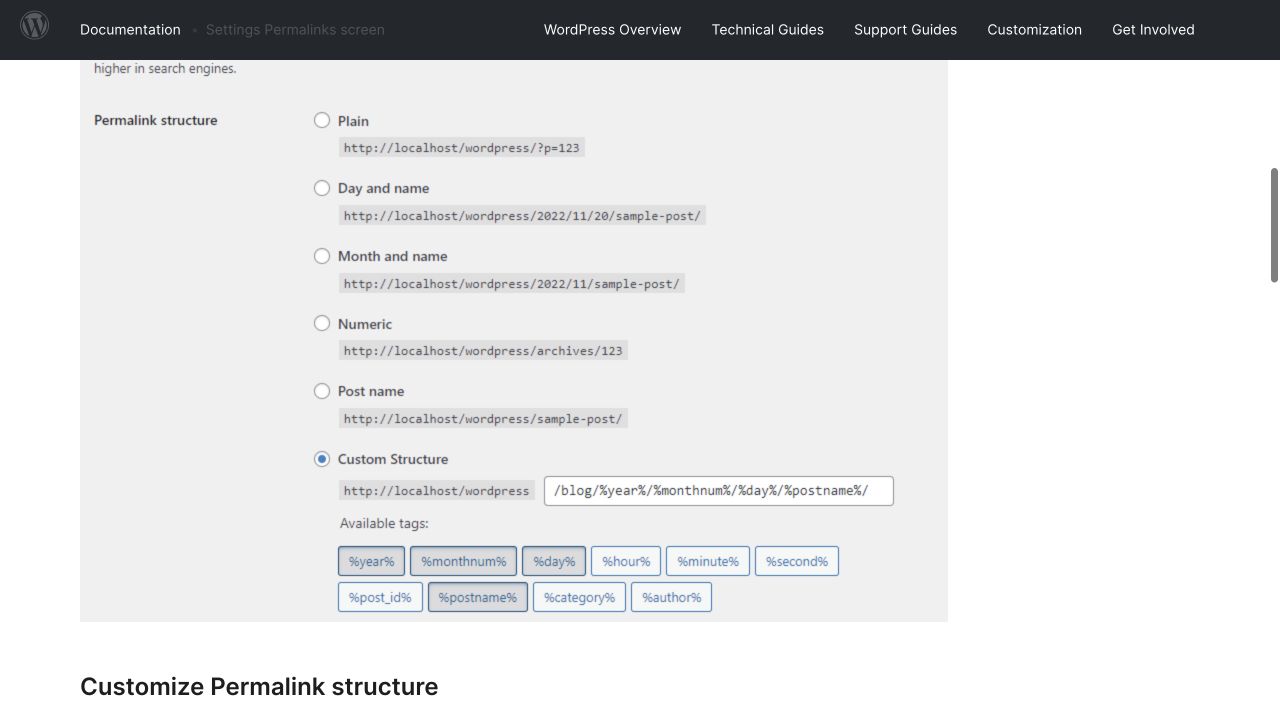
Authentic desktop capture. The screen controls generated URL structure; choosing a new structure is not evidence that old URLs will redirect correctly.
For a new site, choose a readable structure that fits its content model before publishing extensively. For an established site, do not switch the whole structure merely because a checklist prefers a different appearance.
The old URLs may be linked from articles, campaigns, partner sites, saved bookmarks, and search results. A change needs a destination map and verification.
Plan the move before saving the setting
| Check | Required evidence |
|---|---|
| Scope | An inventory of affected posts, pages, archives, and special content types |
| Destination | The intended new URL for each affected old URL |
| Dependencies | Internal links, navigation, campaigns, sitemaps, and other references to update |
| Redirects | A suitable permanent move from each old URL to its relevant new destination |
| Release and recovery | A backup, implementation owner, test plan, and rollback route |
Google describes 301 and 308 as permanent redirects. The implementation depends on the server or hosting environment. Avoid a blanket redirect to the homepage when the visitor expects a particular article. Google redirects guidance.
Test representative old and new URLs after implementation, including different content types. Confirm the destination content, redirect behavior, updated internal links, and absence of unexpected chains or loops. Do not assume WordPress, the host, or a plugin handled every legacy case automatically.
This is a proposed migration workflow. No permalink changes were made for this guide.
3. Decide what the SEO plugin actually needs to do
An SEO plugin is useful when it supplies controls or outputs the site needs and does not already manage elsewhere. Choose it from requirements rather than a promise that installation will improve rankings.
List the outputs you need: page-specific metadata, canonical handling, sitemap generation, appropriate structured data, or editorial checks. Then identify the theme, plugin, host, or custom implementation currently responsible for each.
| Output | Decision to make | Verification |
|---|---|---|
| Page title | Which system writes the HTML title? | Inspect the live page’s actual title |
| Meta description | Where does the editor enter a page-specific summary? | Confirm the description appears in the intended output |
| Canonical information | Which implementation owns the preference? | Check that outputs are consistent with the intended URL |
| XML sitemap | Which system generates the active index? | Open the actual index and inspect representative destinations |
| Structured data | Which system owns each supported type? | Check accuracy and avoid contradictory duplicate outputs |
One accountable owner for each output makes conflicts easier to diagnose. This does not mean installing only one plugin on the entire site; different plugins can own genuinely different functions.
Verify the actual sitemap address
WordPress introduced core XML sitemaps in version 5.5, with /wp-sitemap.xml as the documented index endpoint. Whether it is available on your installation depends on its configuration. WordPress core sitemap release note.
Yoast documents its own sitemap index at /sitemap_index.xml. That is an example of plugin-managed behavior, not the universal WordPress endpoint. Yoast sitemap submission guidance.
Open the active sitemap, confirm that it is the intended index, and inspect several included URLs. Submit the actual address through the appropriate authorized search property. Do not guess an endpoint from another website or assume successful submission means every URL is indexed.
Use plugin feedback as an editing aid
Yoast uses a focus-keyphrase field to analyze the page’s content. Treat that feedback as an editing aid, rather than an indexing request or a ranking guarantee. Yoast focus-keyphrase guidance. A green indicator does not establish that the answer is accurate, original, complete, or useful.
Preserve necessary wording and conditions when considering suggestions. Do not introduce unnatural repetition to satisfy a score, and do not install a second SEO plugin simply to obtain a second score.
For plugin selection, review current compatibility, support, required features, and maintenance responsibility. This article does not claim a hands-on comparison of Yoast, Rank Math, or other products.
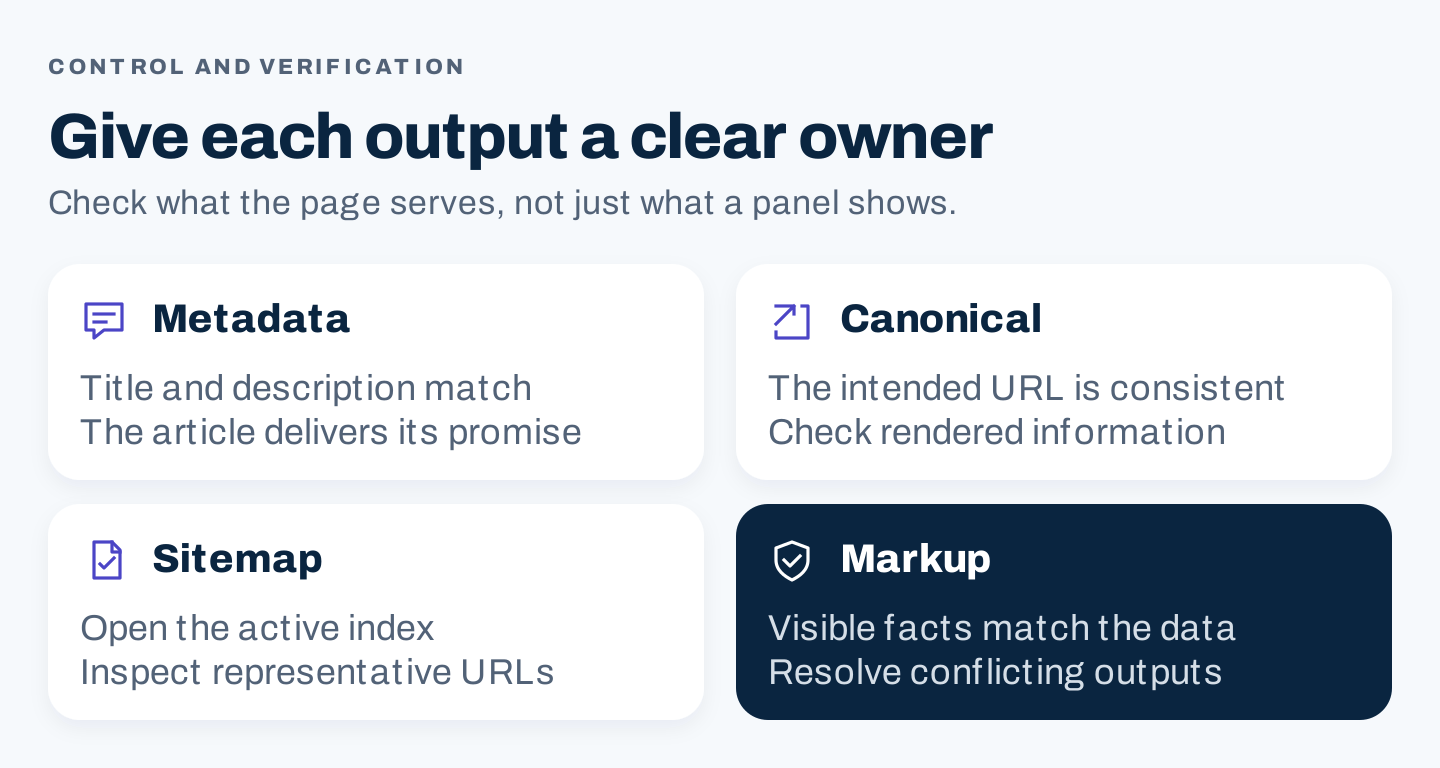
Original output ownership check. The public page is the verification target; the settings screen is the control surface.
4. Prepare the post and its supporting images
Use a brief that identifies the reader’s question, required evidence, important conditions, and next action. Confirm whether an existing article already serves the same task before creating a duplicate.
Write the answer and organize its supporting sections. Use headings that expose the decisions or steps. Add descriptive internal links to the pages readers need next, and check that each destination matches the promise of its link text.
Set a title and description that match the page
A descriptive title helps people understand what they will find. Google can generate a title link using several sources, so the displayed result may differ from the HTML title. Google title-link guidance.
A meta description should summarize this page accurately. Google may instead generate the snippet from page content, and snippets can vary by query. Do not promise a fixed display just because the plugin preview fits. Google snippet guidance.
The post’s visible heading, metadata, and opening should make compatible promises. If the title says “checklist,” the article needs usable checks. If it says “tested comparison,” the article needs evidence of the tests.
Add images that explain something
Choose a screenshot to identify a relevant interface state, a diagram to explain a relationship, or a photograph when it supplies authentic evidence. Decorative stock imagery cannot demonstrate that a procedure was performed.
For each asset, record what it shows, where it came from, when it was captured if time-sensitive, and whether its publication use has been reviewed. Keep the relevant explanation in text as well.
WordPress’s Image block supports alt text and captions. A block-specific alt-text edit applies to that use, while the Media Library can supply defaults for later insertions. Verify the actual use in the post. WordPress Image block.
| Image check | What a reviewer should see |
|---|---|
| Purpose | A detail that helps answer the question or verify a step |
| Alt text | A meaningful description appropriate to this use; decorative images can have empty alt text |
| Caption | The relevant lesson, source, or capture context |
| Text equivalent | Important conditions available without reading tiny labels |
| Size and delivery | A usable image that does not require unnecessarily large downloads |
| Phone layout | No page-wide overflow or illegible essential information |
| Destination | Any image link opens the intended full image or source |
Compact landscape diagrams can work well for relationships. Dense desktop screenshots may need a full-image link and a plain-text explanation of the relevant controls. Check the actual phone presentation rather than assuming a desktop preview is enough.
5. Review archives, themes, and technical health selectively
Category, tag, author, and other archive pages can be useful navigation. Decide which ones help readers find related content and which ones create redundant routes. Do not automatically exclude every archive because a generic checklist calls them duplicates.
If you change indexability or canonical behavior, record the purpose and check the live output. A sitemap setting alone is not the complete decision about whether a page should appear in search.
Evaluate the theme with real content
Open a representative article on desktop and phone. Check headings, navigation, tables, image captions, embedded controls, and the intended next action. A theme’s marketing description is not proof that your configured page is fast or accessible.
Use PageSpeed Insights to investigate performance. It distinguishes controlled lab diagnostics from available real-user field data; field information may apply to the origin or be unavailable. About PageSpeed Insights.
Give specific issues to the person responsible for the theme, scripts, images, or hosting. “The article’s table exceeds the phone width” is a useful work item. “Make the SEO score perfect” is not a sufficient diagnosis.
Understand what Site Health covers
WordPress Site Health provides Status and Info views for configuration diagnostics. It is useful for investigating the system, but it is not a complete content or search audit. WordPress Site Health.
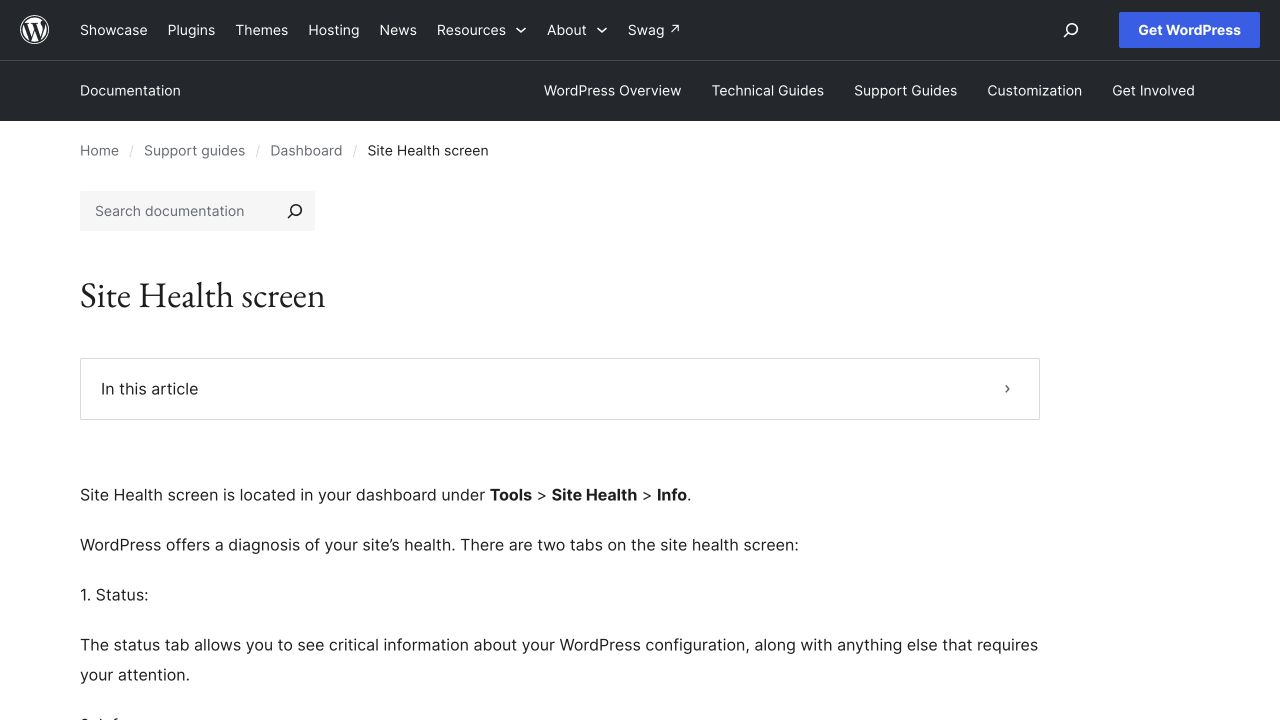
Authentic desktop capture of public documentation. Site Health describes WordPress configuration; no private site diagnostics were collected.
Use its findings with context. Do not infer that a healthy configuration guarantees discovery or rankings, and do not treat every recommendation as a change to make without checking compatibility and responsibility.
6. Verify the public post and maintain the system
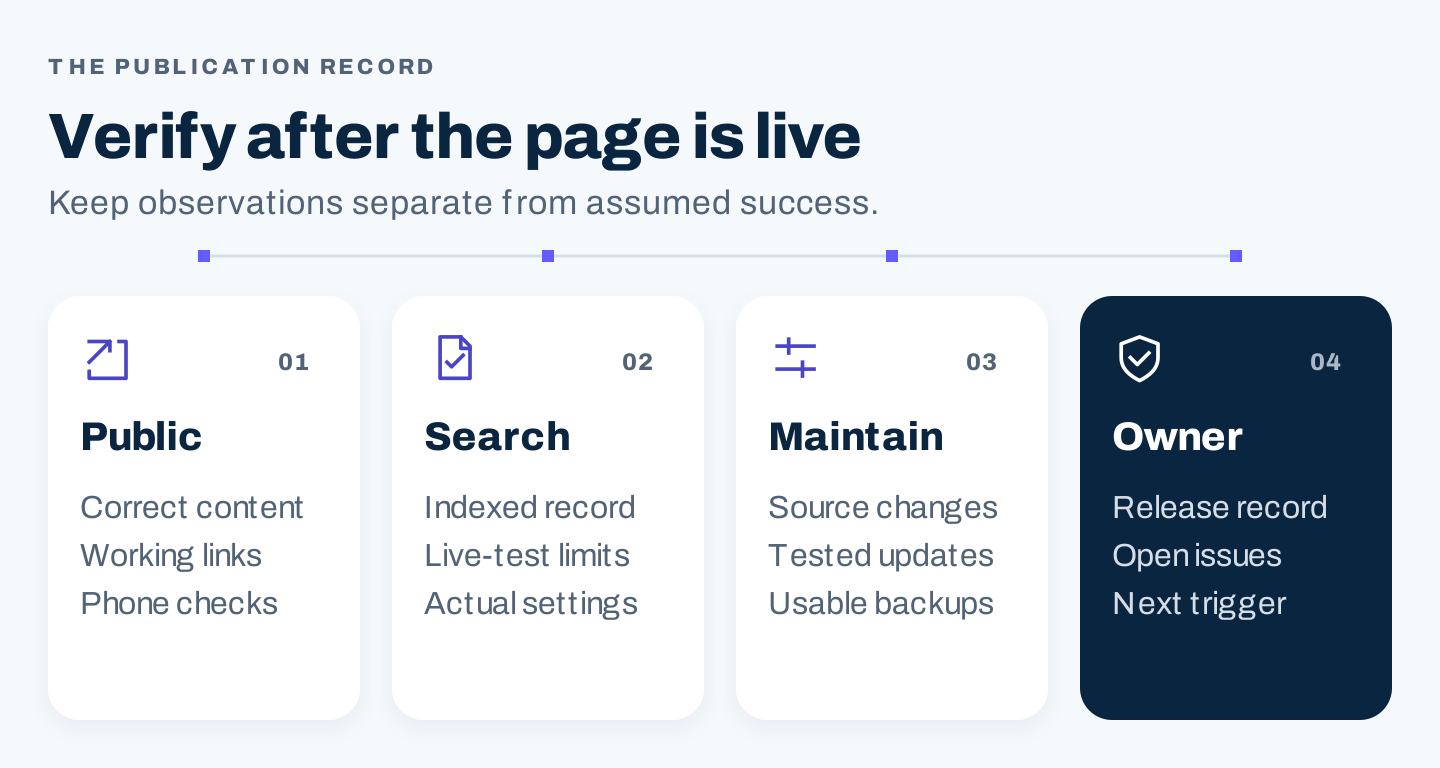
Original release sequence. Publication is followed by observation and maintenance, with a person accountable for each change.
Before publication, review the draft and preview. After publication, repeat the checks on the public URL as a visitor, especially when caching or other delivery layers can serve a different version.
Environment and intended public URL:
Reader task and approved article version:
Title, description, and visible heading checked:
Links and intended next action checked:
Images, alt text, captions, and phone layout checked:
Visibility and canonical output checked:
Active sitemap and representative URL checked:
Indexed information versus live-test observation:
Plugin, theme, and host owners:
Release date and reviewer:
Outstanding issue and next review trigger:
Maintain backups, supported software, and a compatibility-aware update process. Test changes that affect the public page or its metadata. Record substantive article changes and revisit sources when interfaces, product conditions, or policies change.
If search performance declines, investigate the affected pages, periods, and technical observations before rewriting everything. If the article is inaccurate, correct the actual error. If the title makes the wrong promise, revise the promise and answer together.
An AI prompt is not necessary to complete this checklist. The useful requirement is a verified page: accurate content, suitable visuals, consistent outputs, and a maintenance owner who can explain what changed.